Because of their scalability and high-availability, Buckets are a great option for storing backups.
Duplicati is an open-source, fast and secure backup program for local directories or files. It uses encryption to protect your backups, ensuring that only you can access the data. For more information about Duplicati, see:
-
Create your credentials
For a step-by-step guide, see the getting started article "Generating S3 credentials".
Make sure you save the credentials in a safe location right after you create them. You cannot view the secret key again, neither via Hetzner Console nor via API.
-
Install Duplicati
If you haven't already, install Duplicati now. You can follow the official instructions at docs.duplicati.com. You can find the
.debpackages for GUI on GitHub.sudo systemctl status duplicatiTo start Duplicati via CLI, run:
sudo systemctl start duplicatiClick here to see how to login without a password
Make sure Duplicati is not running. Then start Duplicati without a password. You will get a URL with a token.
sudo systemctl stop duplicati
duplicati-server --no-admin-password --webservice-port=8200
The URL will look like this:
http://localhost:8200/signin.html?token=<your_token>
-
Create test files
On your local machine, create a new directory called
restoredand a new file calledtest-file.txtto test backups. Add some text in the test file.home/ ├── test-file.txt └── restored/
-
Create a backup
In the Duplicati UI, navigate to
Add backupin the left menu bar and selectAdd a new backup +.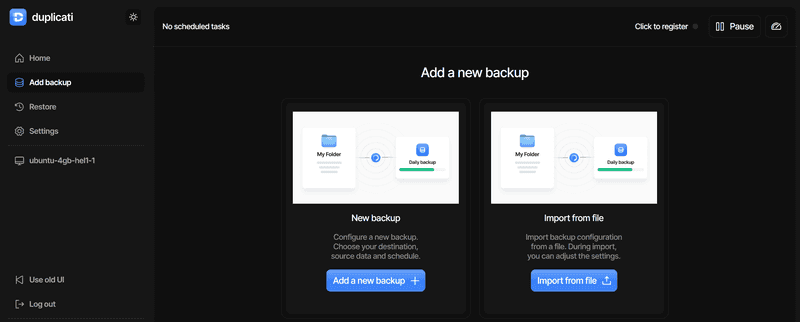
Enter the following information:
General backup settings Backup name Backup on Hetzner Backup description Hetzner Bucket Encryption AES-256 encryption, built in Provide a password to encrypt your data. The data cannot be decrypted without this password.
Next, select
S3 Compatibleand fill in the following:General backup settings Bucket name <your_bucket_name>Folder path duplicati (does not need to exist yet) Server <location>.your-objectstorage.comInstruct Duplicati to use an SSL (https) connection Enable this option AWS Access Key ID <your_access_key>AWS Secret Access Key <your_secret_key>Under "Source Data", select the
test-file.txtfile you created.In the final two stages, define when and how often a new backup should be created, and if or when old backups should be deleted.
After you select "Submit", the backup job should appear in "Home".
-
Restore backups
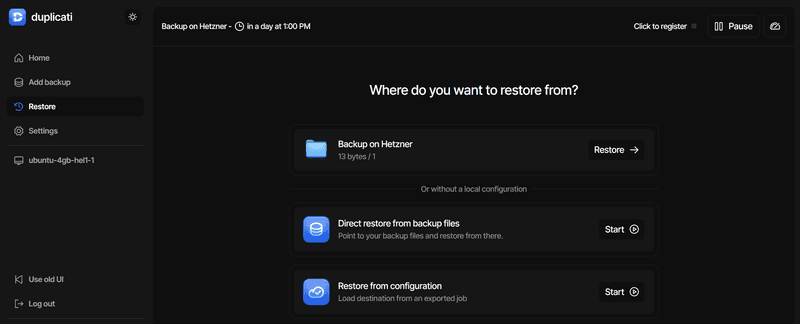
In the Duplicati UI, select "Restore" in the left menu bar. The list should include the backup job you just created (e.g. "Backup on Hetzner"). Click on "Restore" next to the name.
-
In the dropdown, you can select the backup that should be restored. Right now, there is probably only one backup available.
In the box below, you can choose the file(s) or folders you want to restore from the selected backup. If you used the example above, there will be only one file available.
Select the file and click "Continue"
-
For the location, tick "Pick location" and select the
restoreddirectory you just created. Below, you can keep "Overwrite" ticked.
After you select "Submit", the restored file should appear in the directory
restored.home/ ├── test-file.txt └── restored/ └── test-file.txt -
Your data should now be backed up automatically.