Node.js is a JavaScript runtime environment that allows JavaScript code to run outside the browser — in the backend. It is used to build server-side applications, APIs, and real-time applications such as chats or live dashboards. With its asynchronous, event-driven architecture, Node.js can handle many processes simultaneously, making it ideal for scalable web applications. It is also a great choice for developing tools and automation scripts. Thanks to its integrated package manager npm, the platform is highly versatile.
Activate Node.js
You can activate Node.js from Webhosting L/XL in konsoleH. Log in, select a domain, and click on Services → Node.js configuration on the left. Then you can activate Node.js on the right with the red button.
On Managed Servers you need to enable Node.js via Reseller functions under your server first. Then, select Manage packages and choose the account type for which you want to use Node.js. After saving your new settings, return to the Product overview and select the domain. On the left, you will now see Services → Node.js Configuration.
Please note that all other web applications (such as PHP or HTML applications) will be deactivated when you activate Node.js for the selected domain. The konsoleH menu is for running your Node.js web application permanently and making it accessible via your domain.
Do you still need other web applications, such as PHP, under the domain? For example, for your CMS? If Node.js is included in your product, it is already installed on the server in different versions. Alternatively, you can specify the desired Node.js version in your account via SSH. This allows you to use Node.js without activating or configuring it via konsoleH:
echo 24 > ~/.nodeversionNode.js configuration
In konsoleH, you can configure the following and save your changes:
- Script path: Path to your script, relative to the working directory
- Working directory: Path, relative to the home directory, where your Node.js script lies
- Log file: Here you can specify a path to a log file relative to the home directory
- Memory limit: Specify a memory limit
- Version: Select the Node.js version
- Arguments: Add your own arguments
- Environment variables: Add your own environment variables from your script
Examples
Hello World
-
Create a new folder in your home directory named
nodejs-hello-worldand create a fileapp.jswith the following content:const { createServer } = require('node:http'); const server = createServer((req, res) => { res.statusCode = 200; res.setHeader('Content-Type', 'text/plain'); res.end('Hello World'); }); server.listen(() => { console.log("Application is running..."); });You can use WebFTP, an FTP client, or SSH to create the file.
-
Open the
Node.js Configurationmenu on konsoleH and fill in the fields with the appropriate values: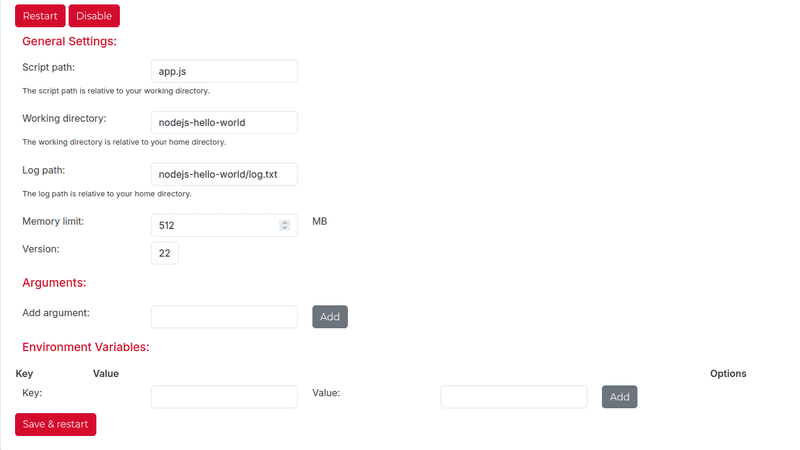
-
Click
Save Settingsand activate Node.js by clicking theActivatebutton. -
Open your domain in a browser – you should see "Hello World".
n8n
-
Log into your server via SSH.
-
Install
n8n:NODEVERSION=22 npm install -g n8n -
Open the
Node.js Configurationmenu on konsoleH and fill in the required values: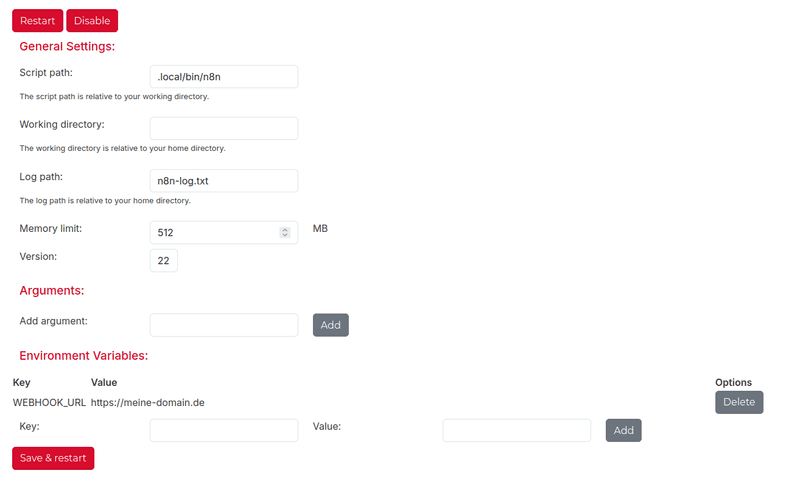
Make sure to set the environment variable
WEBHOOK_URLto the URL where the application will run. -
Click
Save Settingsand activate Node.js. -
Open your domain in a browser – the n8n setup page should appear.
Uptime Kuma
-
Log into your server via SSH.
-
Download and set up Uptime Kuma:
git clone https://github.com/louislam/uptime-kuma.git cd uptime-kuma NODEVERSION=20 npm run setup -
Open the
Node.js Configurationmenu on konsoleH and fill in the required values: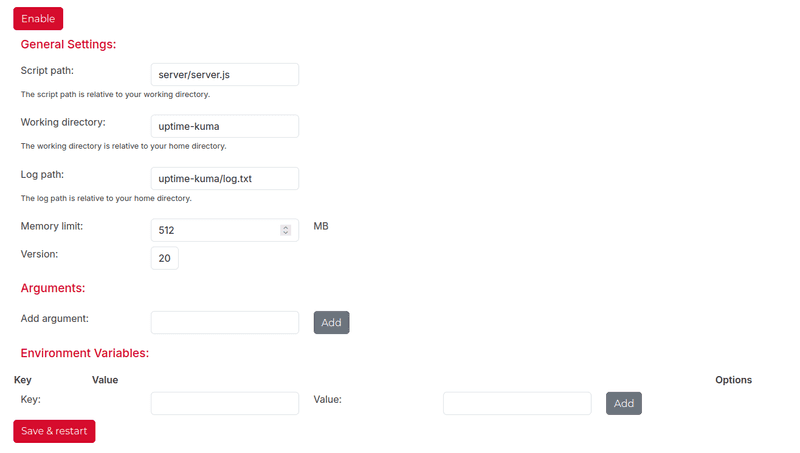
-
Click
Save Settingsand activate Node.js. -
Open your domain in a browser – the Uptime Kuma setup page should appear.