A TLS/SSL certificate is used for websites to prove the identity of the hosting server and encrypt communication between the client and the server. See full certificates overview.
To add your own TLS/SSL certificate on Hetzner Console, please open your project and do the following:
-
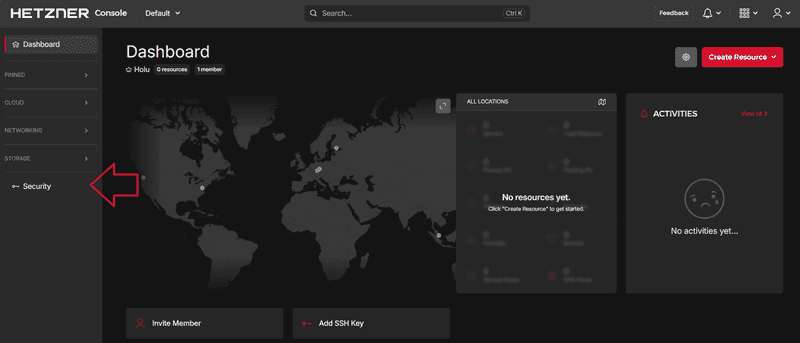
Go to Security on the left menu bar
-
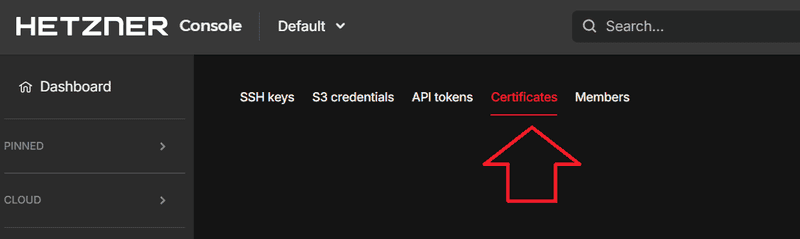
Go to Certificates on the upper menu bar
-
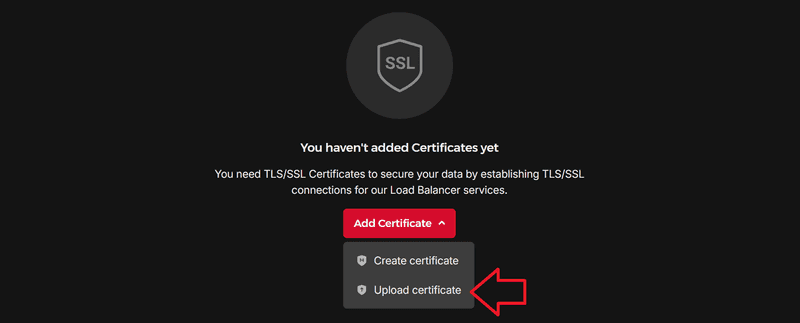
Select Add Certificate and then Upload certificate
-
Paste in your certificate
You should already have a TLS/SSL certificate (e.g. with Let's Encrypt) and several files for that certificate. Example certificate:
example.com.crt-----BEGIN CERTIFICATE-----
[your_certificate]
-----END CERTIFICATE-----
-----BEGIN CERTIFICATE-----
[your_certificate]
-----END CERTIFICATE-----example.com.key-----BEGIN EC PRIVATE KEY-----
[your_private_key]
-----END EC PRIVATE KEY-----
In the text box for the Certificate, add the content of the file that contains the certificate (likely ends with
.crtor is calledcert.pem).In the text box for the Private Key, add the content of the file that contains the key (likely ends with
.keyor is calledprivkey.pem).Your input should look like this:
Name
certificate-1
Certificate -----BEGIN CERTIFICATE----- [your_certificate] -----END CERTIFICATE----- -----BEGIN CERTIFICATE----- [your_certificate] -----END CERTIFICATE-----Private Key -----BEGIN EC PRIVATE KEY----- [your_private_key] -----END EC PRIVATE KEY-----If all the input is correct, select Save certificate.
The certificate is now available in your project and you can start using it.
Next: