This article provides information about using a Dell PowerEdge Server 17th generation.
How do I connect to the iDRAC?
In the order completion mail, there are two IP addresses; one of them for the server itself and the other one for the iDRAC. There are also two logins: one for the server itself, and a second one, below that, for the iDRAC. (They are separate logins).
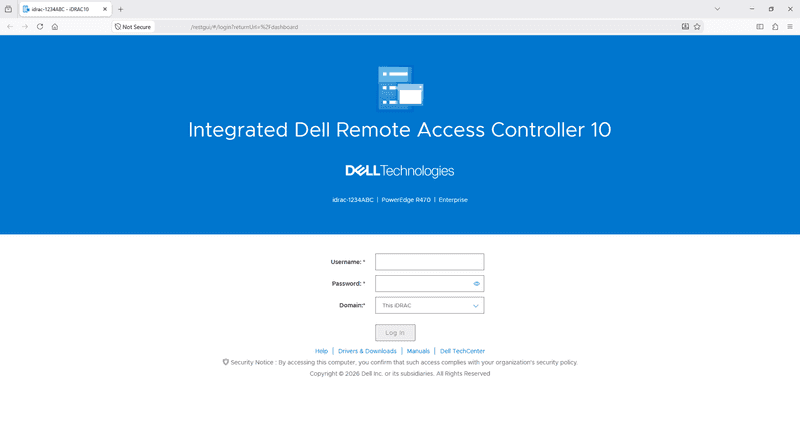
Just enter the iDRAC IP into the address bar of your browser and confirm any possible security warnings. After that, you will see a web interface and you can log on with the iDRAC login information. At this point, you can use the KVM function, turn the server on and off, mount an ISO image for an installation, and diagnose hardware problems.
How do I change the iDRAC password?
First, log into iDRAC and go to the menu iDRAC Settings and select Users.
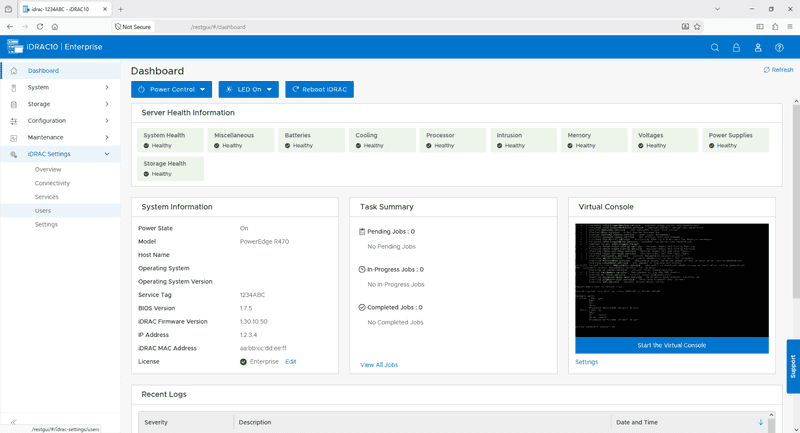
Now click on the user whose password you want to change (e.g. root) and then on the Edit button.
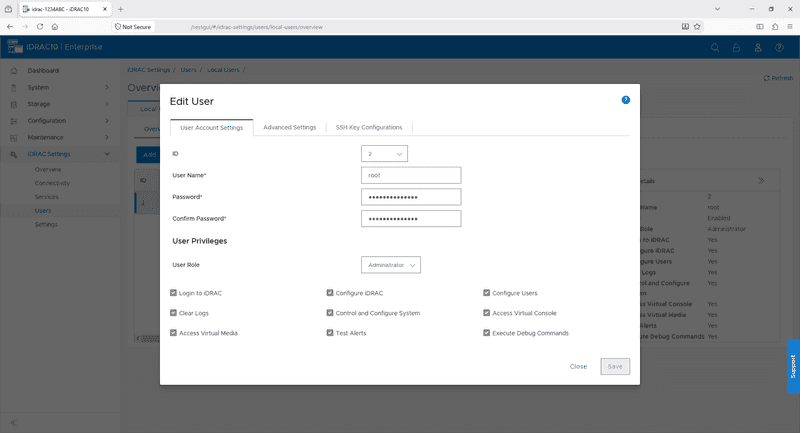
In the pop-up window that now appears, you can already change the password in the correct fields and then apply it by clicking on Save.
What is the KVM function and how do I use it?
The KVM function, more specifically the KVM over IP function, allows you to use the server over a network just as if you were directly in front of the machine with a screen, a keyboard, and a mouse directly attached. When you log onto the iDRAC, you see a preview of the current video output of the server on the middle right third of the website.
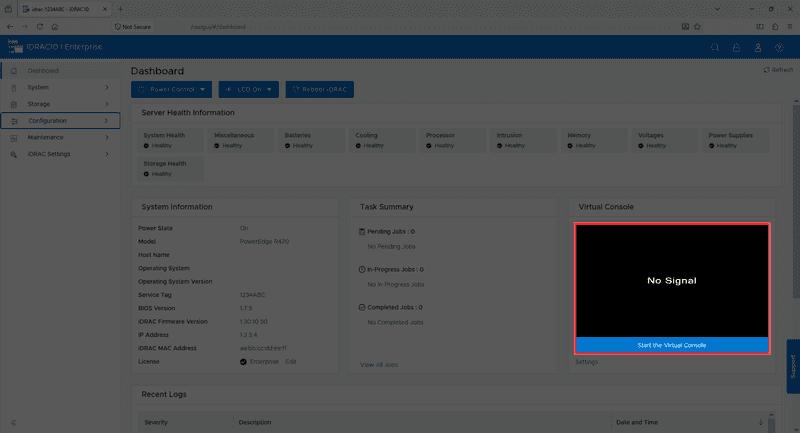
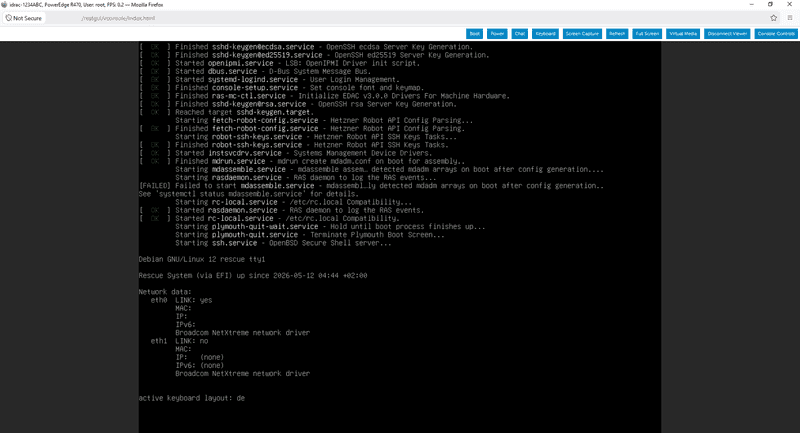
If you click on Start the Virtual Console below the preview and confirm the requests for pop-up windows for the iDRAC address, a new window opens first. In this window, you must add an exception for the SSL certificate. You will then be connected live and can operate the server just like any other computer. For special functions such as a reboot or to send certain key combinations (e.g. CTRL-ALT-DEL), use the menu Console Controls in this KVM window.
How do I configure the RAID controller?
Dell 17th-generation servers are no longer equipped with hardware RAID controllers
How do I mount an ISO image?
To do this, select the option Virtual Media in the KVM window. Another window will appear in which you can directly select local drives or stream ISO images (CD/DVDs) to the server. If you have chosen one of the options and have selected a device/ISO, click on the corresponding Map Device button and finally on Close. The local drive/ISO should now appear in the operating system/boot menu.
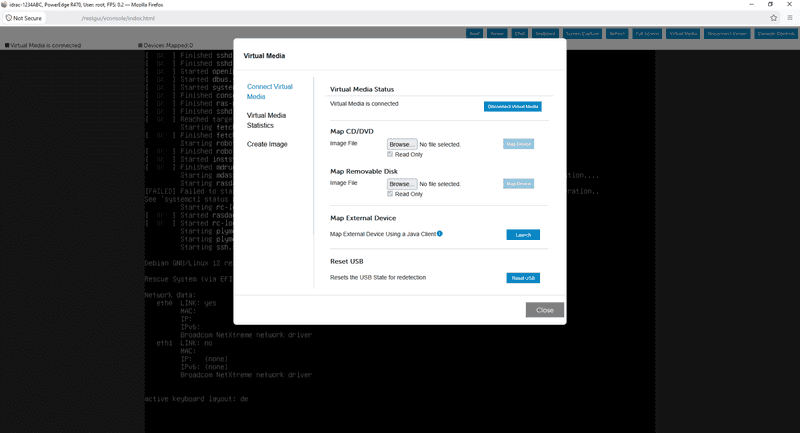
If you restart the server now, you can boot from the image just as you could from any other drive. To do so, please press F11 to go to a boot menu when you see the message to press F11. An even easier way to boot from the image is to select the entry Virtual CD/DVD/ISO in the menu Boot on the KVM window.
How do I mount operating system images from the Hetzner Mirror?
To help our clients install an operating system on the server manually, we provide images of certain operating systems.
You can find the images we offer on two of our mirrors:
- http://download.hetzner.com/ You can access this from anywhere, and it requires a username and password to login. You can find these details at the end of your server activation email (the email in which we at Hetzner Online sent you the login details for the server itself).
- http://mirror.hetzner.com/ You can only access this from the Hetzner network, and it does not require a password.
The following examples use the internal mirror, though there is also a link to the external mirror below. You can use this link to the external mirror to check the exact file names of the operating system images.
Windows
You can see the Windows images we have under http://download.hetzner.com/bootimages/windows/
These Windows images are straight from Microsoft and don't include any changes from us. They do not come with a license. You can use them to install a clean Windows OS on the server, which you can activate with your own license key.
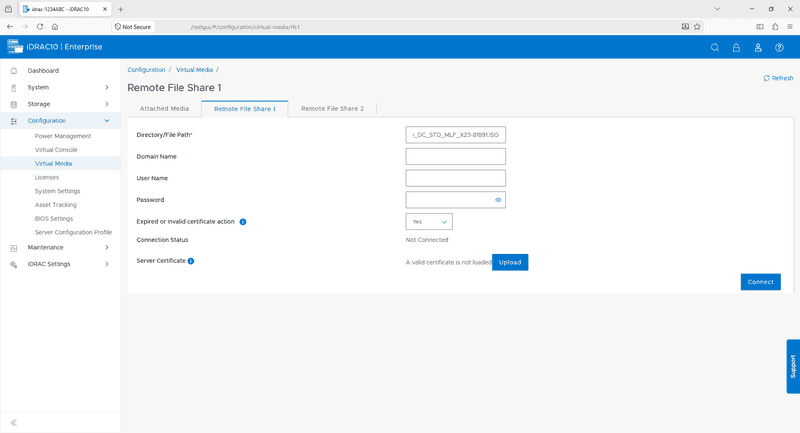
- You can copy the Image File Path directly from our mirror.
- Example:
https://mirror.hetzner.com/bootimages/windows/SW_DVD9_Win_Server_STD_CORE_2025_24H2_64Bit_English_DC_STD_MLF_X23-81891.ISO
- Example:
- You can leave the User Name and Password fields blank: you don't need them.
- The iDRAC should now display the value
ConnectedunderConnection Status ... - Now you can set the next boot drive in the KVM window to
virtual CD/DVD/ISO. Or, you can also select the corresponding entry via the boot menu (F11) on the BIOS POST screen.
OS Deployment via the LCC (Lifecycle Controller)
Your DELL Server has an OS Deployment function that is integrated into your server's lifecycle controller. This function provides the necessary drivers for the operating system and guides you with graphical wizards.
DELL only supports certified operating systems via this function. These may vary from model to model. For an overview of the operating systems for your rented product, please visit the correct DELL website.
- R470 (DX154/DX294): https://www.dell.com/support/home/en-us/drivers/supportedos/poweredge-r470
If you would like to use the OS Deployment function, you must first choose an image from our mirror aswell the Device Drivers. As soon as you have chosen the image, you need to restart your server and boot it into the LCC by pressing F10 in the BIOS POST. The following example shows how to use the OS Deployment function with Windows Server 2025.
log into iDRAC Select the Menu in order Configuration then Virtual Media. The now shown Site will be Attached Media. At the bottom you will find a Button labeled Mount Drivers
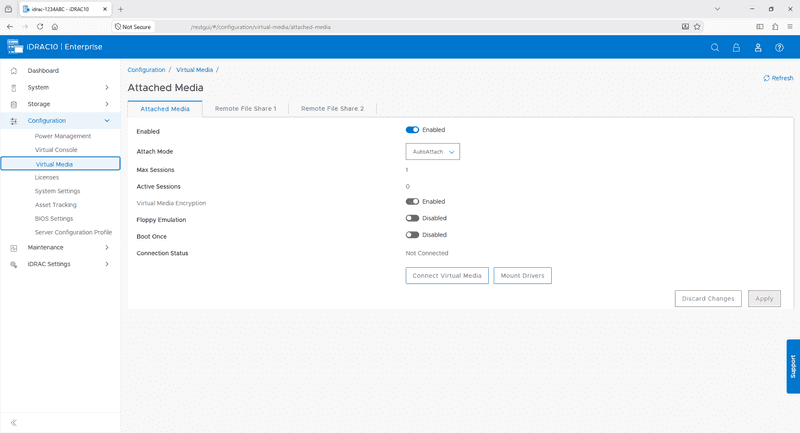
A new window will appear, Select the Operating System, you are going to install and how long the drivers should be available until it will be unmount automatically. Now click Mount Drivers.
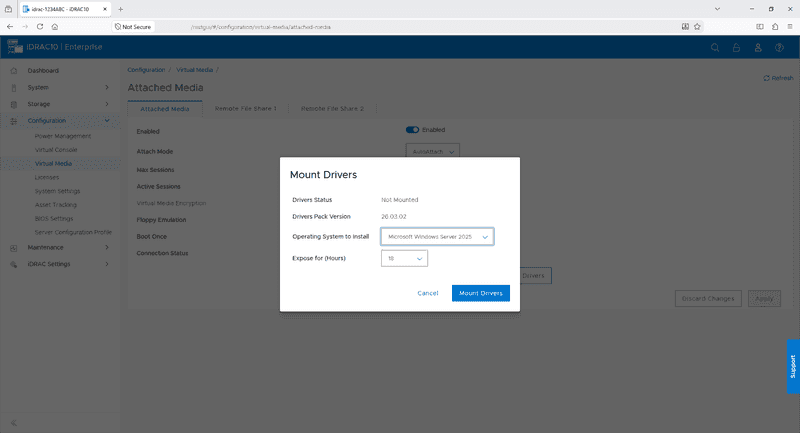
This task takes a while, either you switch to Job Queue or select cancel and switch to the Tab Remote File Share 1 respectively Remote File Share 2. Here you can select the ISO as described in Section Windows.
Now You need to restart the Server and press F10to the BIOS POST Menu to boot the LCC.
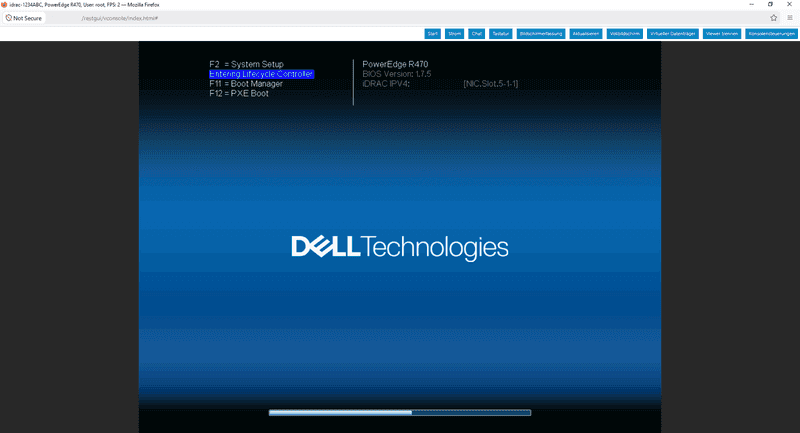
- When the server is booted up into the LCC, click on
OS Deploymentin the menu on the left side, and then onDeploy OS.
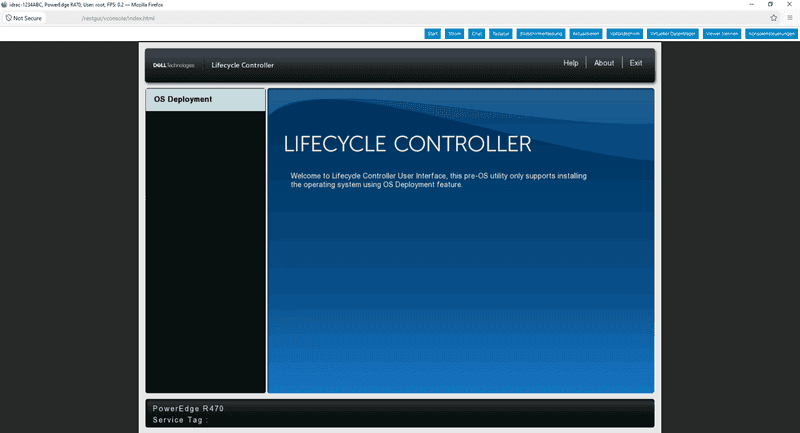
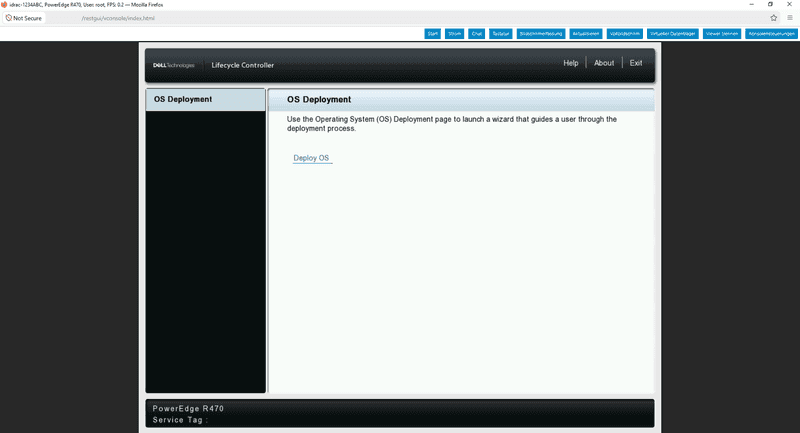
- Then select the operating system you want to install from the dropdown menu.
- Since Gen 17 Servers only can use UEFI mode, you need to select whether you want to use
Secure Bootor not. - Now click on
Next, and the server will collect the drivers required for installation.
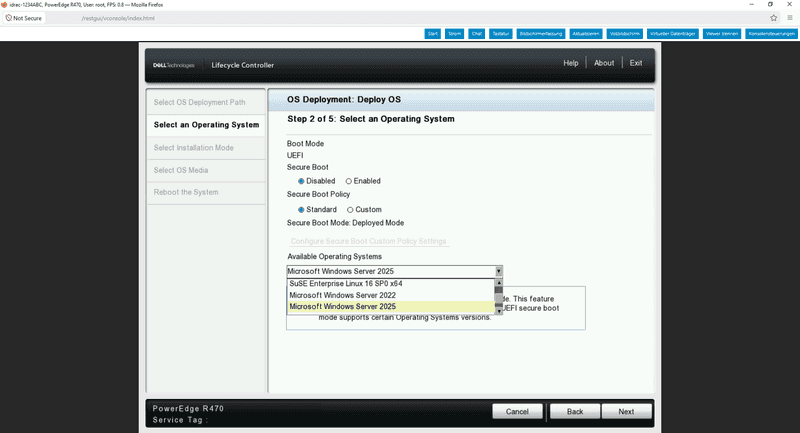
- In the third step, select
Manual Installand click onNext. Then, the DELL server will validate the operating system image.
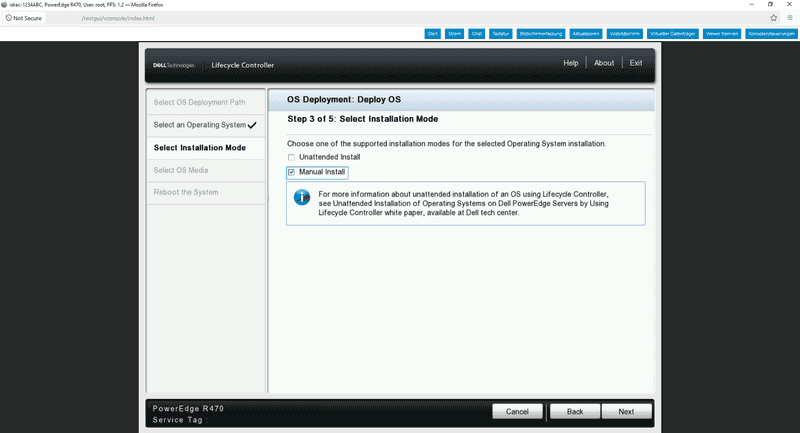
- In the fourth step, you need to select your ISO Drive and click on
Next.
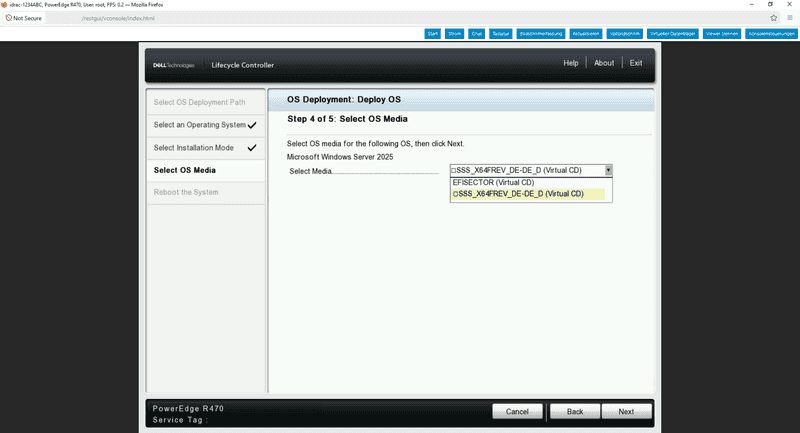
- In the fifth and last step, you will see an overview with the selected settings. Click
Finishif the settings are correct. Then the server will reboot and will start the Windows setup.
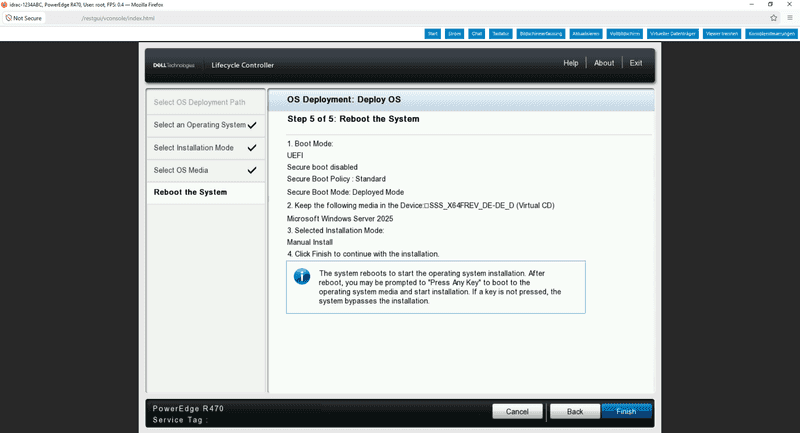
If drivers are missing after the operating system installation, you have a virtual drive where drivers are available for the operating system. This drive is automatically named OEMDRV by the server.