This article is supposed to help you transition from a DHCP based Windows Server setup to a static IP setup. The background to this is an upcoming network change at Hetzner, which will mean that DHCP-based configurations on customer systems will no longer be supported.
Presumptions for this example
This article will use the following example information for the setup:
| Variable | Value |
|---|---|
| IPv4 Main address | 192.0.2.10 |
| IPv4 Gateway | 192.0.2.1 |
| IPv6 Main Subnet | 2001:db8:2ed8:a621::/64 |
In order for you to follow along you will need your specific information on hand.
It can be found in the Hetzner Robot:
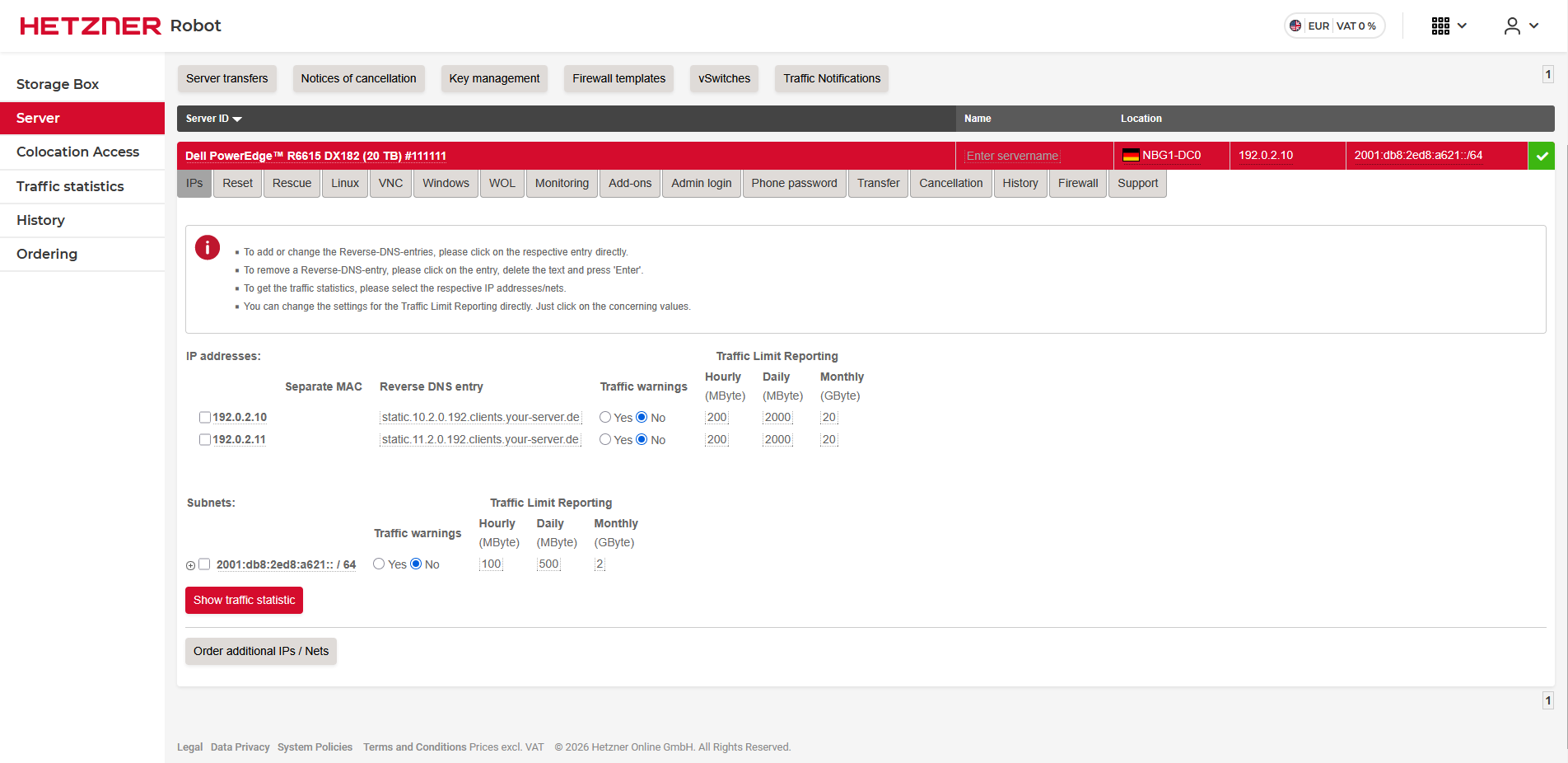
The gateway for your IP can be found by hovering over it.
Other (real world) information for this example would be the following:
| Variable | Value1 | Value2 |
|---|---|---|
| IPv4 DNS Servers | 185.12.64.1 | 185.12.64.2 |
| IPv6 Gateway | fe80::1 | |
| IPv6 DNS Servers | 2a01:4ff:ff00::add:1 | 2a01:4ff:ff00::add:2 |
Note: If possible, perform the configuration via the remote console (KVM) or the Windows console, not via a running RDP session.
Getting to the settings page
- Log on to the computer by using the Administrator account.
- Open up the Control Panel.
- Then select Network and Internet -> Network and Sharing Center -> Change adapter settings (on the left side)
- Right-click the interface that you want to modify and then click Properties.
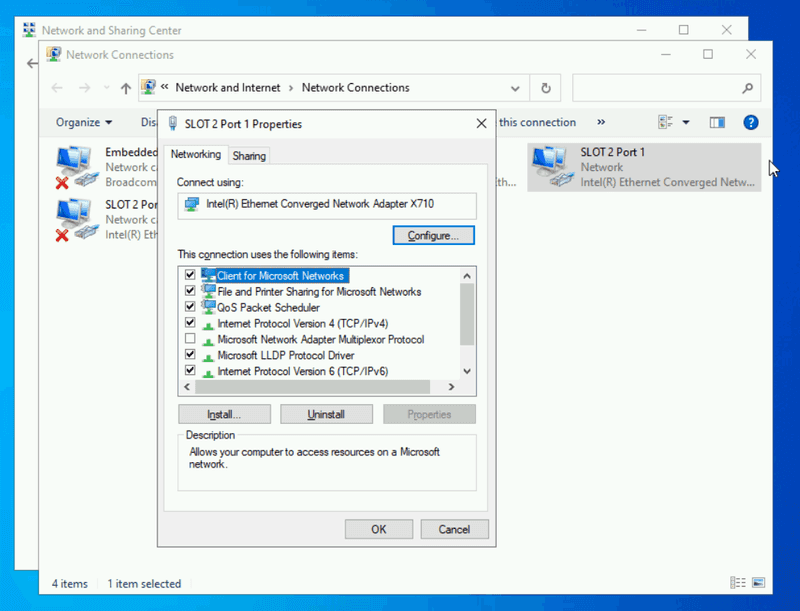
IPv4
- To change the IPv4 Settings click on the "This connection uses the following items"-Entry containing TCP/IPv4
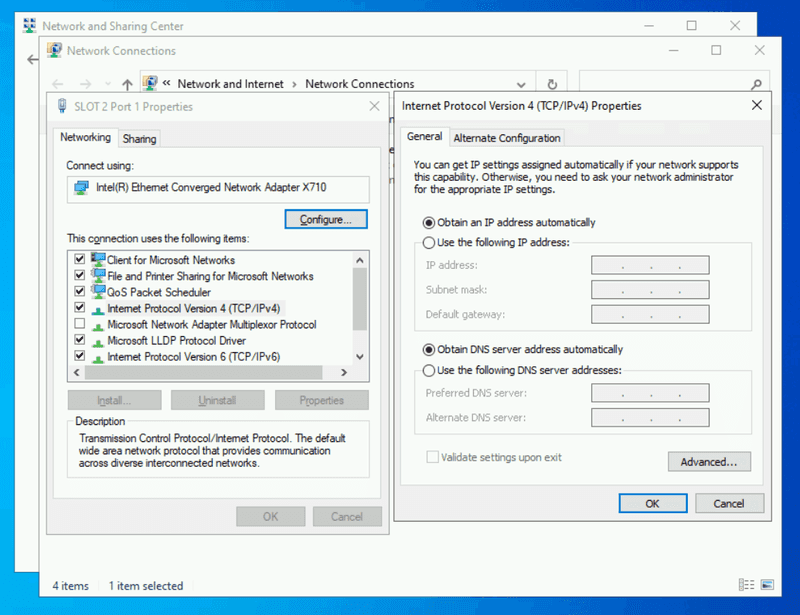
- In here you will need to select "Use the following IP address."
- Then you will need to fill out the information. For our example it would look like this:
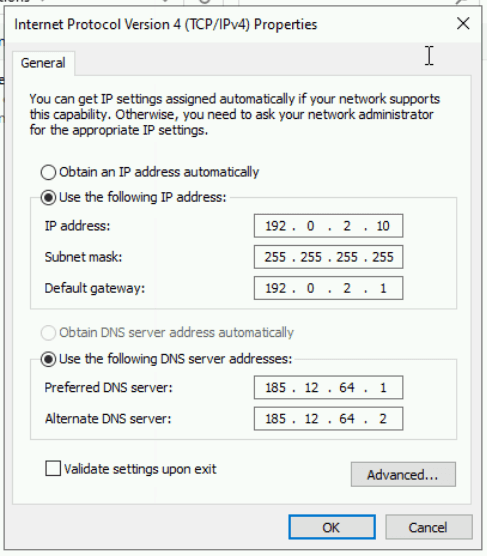
- You will also need to set the DNS statically so fill this out as needed.
- When clicking on OK the system may give you a warning, that the gateway is outside of the subnet. This is intended and can be confimed by clicking on Yes.
IPv6
- To change the IPv6 Settings click on the "This connection uses the following items"-Entry containing TCP/IPv6
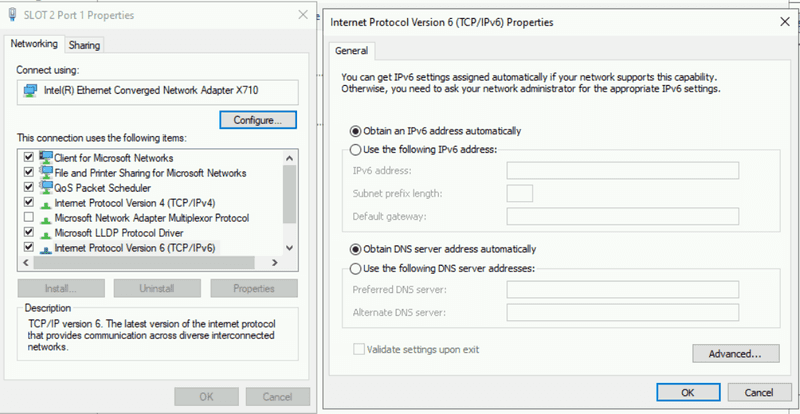
- In here you will need to select "Use the following IPv6 address."
- Then you will need to fill out the information. For our example it would look like this:
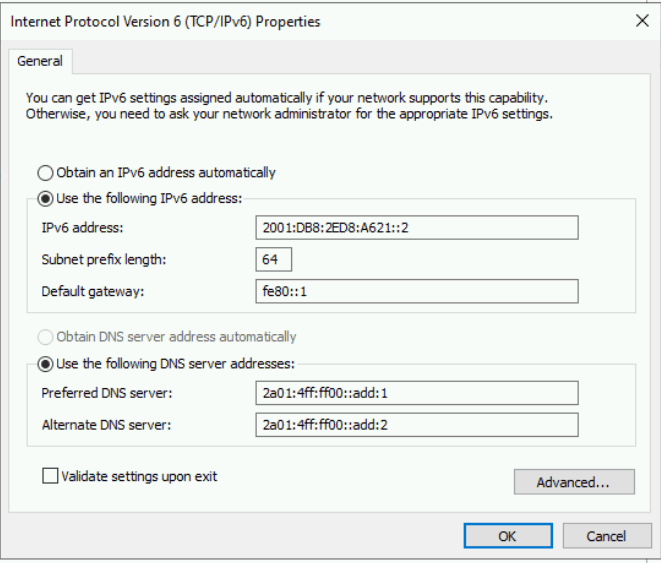
- You will also need to set the DNS statically so fill this out as needed.
Finishing touches
After clicking OK in the Adapter Properties the configuration will be applied.
Now you System is ready to be used without the DHCP Server.