This guide is for new customers who have never had a managed server or worked with konsoleH.
After you order your managed server, Hetzner Online technicians will install it and bring it online within one workday. The support technicians will write you an email when your server is ready.
To set up domains, email addresses, websites and other data, you need to create at least one account on your managed server:

What is an account?
An account is a "space" on the server on which you can add a domain. An account has its own userspace and configurations (PHP, DNS, Cronjobs, FTP).
You can add one or more Addon domains to an account. The addon domains use the userspace of the account that you add them to.
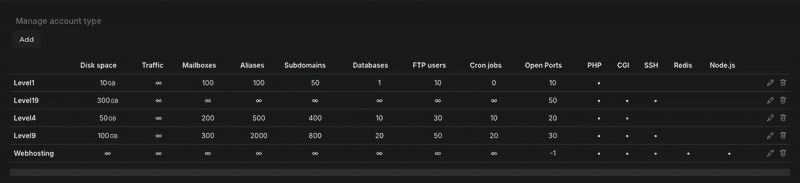
In the "Account types" menu, you can choose the size of the userspace and account features you want to use (SSH, CGI, PHP, Traffic, Mailboxes, Forwards, Subdomains, Databases, FTP-Users, Cronjobs).
Creating an account
- Click on the server name dediXXX.your-server.de or dedivirtXXX.your-server.de.
⚠️ Don't click on "New order" in the top right corner. If you do, this will create a new web hosting account, which will cost you extra money. It will not create a new account on your managed server. Only click on "New order" if you want to buy/order a new product.
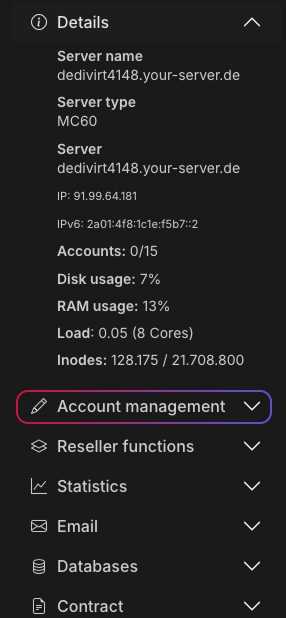
- On the left, you will find the menu for the global management of your managed servers.
-
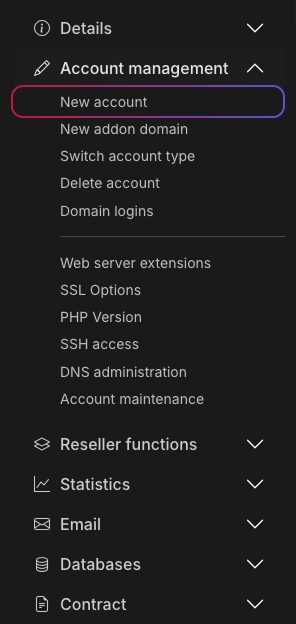
Click on
Account management. -
To create a new account, please choose
New domain.
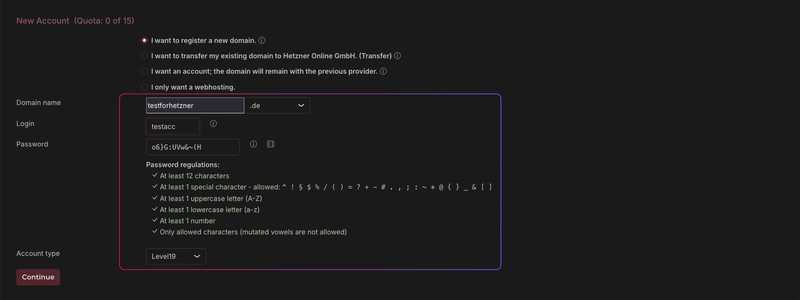
- A dialog box will open. Now just enter the relevant information, so you can create your account/domain.
-
There are three choices about your domain. You can register a new domain, move an existing domain to us by filling out a change provider form (ChProv form), or you can just create an account without a domain registration.
-
In the text field
Domain name, you can enter the name of the domain without a TLD (Top Level Domain). If the TLD you want is not in the drop-down menu on the right, please select the last item in the list (other) and write the TLD in the field that then appears next to the domain. Note: If the TLD does not appear in the drop-down menu, we cannot register this domain for you. -
You can choose the login and password of your choice. You can then use these to log in via FTP access, SSH, and via konsoleH's domain level login.
-
You can choose the account type that is best for your needs. The account type you choose will not affect the price of your managed server. You can change the limits for the individual accounts if you want, and you can even enter your own account types with their own descriptions and define their sizes. To do this, go to the menu item (
Reseller functions→Manage Packages).
⚠️ The account type you choose will define how it is used. For example, if you need an account that supports SSH and has a database connected to it, you need to choose an account type with both of these features.
- Finally, if you have entered everything correctly, konsoleH will create the account. You will then be able to see your new account in your konsoleH account overview. It will be underneath the managed server menu, as in Figure 1, and it will be bold if a domain registration is connected to it. You can then make specific settings for the account. To do this, click on the appropriate domain in the account overview.
Explanation of your server's Overview
Click on the server to display the menu options on the left
Server name
This is the custom name of your server
Server type
Here you can see the type of server you currently have. If you hover your mouse over the information symbol, you can also view the technical specifications of your server.
Server
In this section, you can view the current web address where your server is hosted and its IPv4 and IPv6 addresses.
Accounts
This is the current number of accounts on your server.
Disk usage, RAM usage, Load, Inodes
In this section, you can see the current disk and RAM usage as well as the load and number of Inodes of your server. If these values reach or exceed a certain threshold value, they will be highlighted in color.
Further questions or technical difficulties
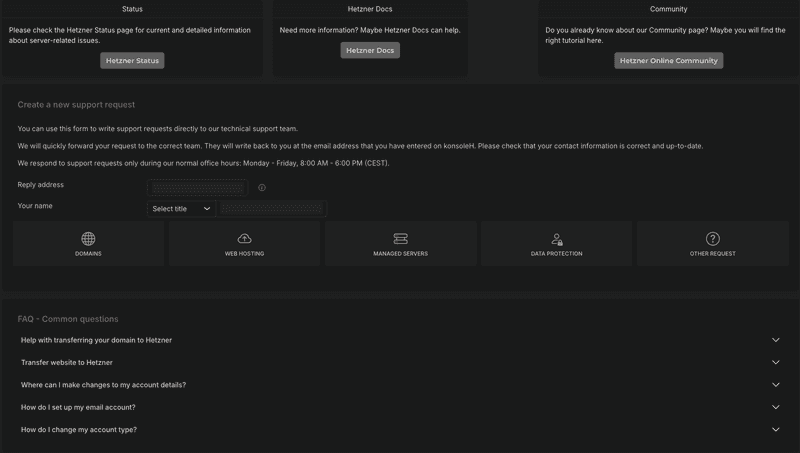
If you have any further questions or any technical difficulties, you can send a support request by going to the administration menu, clicking on Support request and filling out the form.