In the konsoleH SSL Manager, you can request free Basic and Let's Encrypt certificates for the domains and subdomains of your hosting account. If you request the certificate directly through an SSL account, konsoleH will automatically install the SSL account as soon as the certificate is issued. Your website will then be accessible via an encrypted connection at https://.
DigiCert issues Basic certificates, and the Internet Security Research Group issues Let’s Encrypt certificates. Hetzner automatically renews both types of certificates as long as your hosting account stays active. You can find the current validity periods on the Shortening the Certificate Validity Period page.
Requirements
To apply, you will need your customer number and your konsoleH password. The domain must be associated with an active hosting account. If the certificate is to apply to a subdomain, you must have already created the subdomain.
Apply for a Free Certificate
Note: If we have already issued a certificate for your domain, you may not see every certificate type in the drop-down menu. Also, please note the information that the SSL Manager displays above the list regarding your account.
- Log in to konsoleH using your customer number and password.
- Select the domain from the domain overview.
You can open the SSL Manager only from a domain’s menu.
3. In the left-hand menu, open Services → SSL Manager.
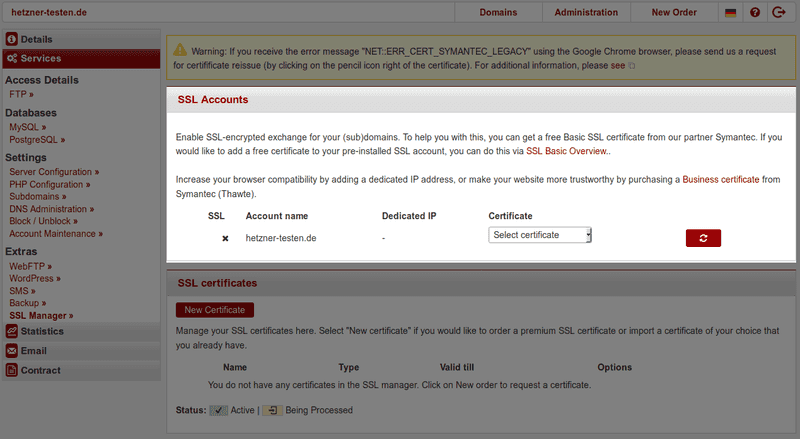
The SSL Manager lists your domains, subdomains, and certificates.
- Under
SSL Accountsnext to the domain or subdomain, open theInstall Certificatedropdown menu.
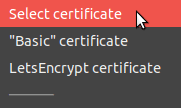
- Select a Basic certificate or a Let’s Encrypt certificate.
- Click the
Refreshicon at the end of the line.
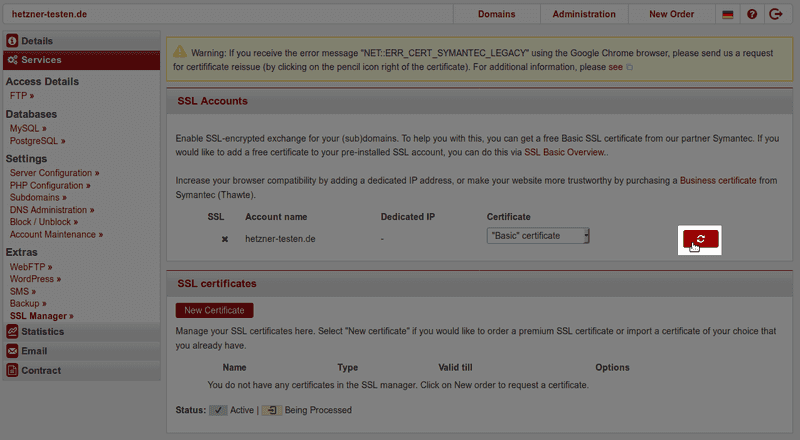
konsoleH requests the certificate. This may take a few minutes because the certification authority must first authenticate your domain. Afterward, the SSL Manager displays the result of the authentication. You can view the status of the request at any time in the SSL Manager under SSL Certificates.
You can also request a free certificate under SSL Certificates → New Certificate. In this case, you will then install the SSL account yourself following the instructions for SSL Accounts.
Authentication Result
The following table shows the possible results and what you need to do in each case.
| Result | What Happens | What You Do |
|---|---|---|
| File-based authentication successful | konsoleH placed a verification file on the server, and the certificate authority verified it. The certificate authority usually issues the certificate right away, and konsoleH installs the SSL account. | Nothing |
| DNS-based authentication in progress | konsoleH created a DNS record in your domain’s zone. The certificate authority may need several hours to verify the record. konsoleH will install the SSL account as soon as the certificate is issued. | Wait |
| Manual authentication required | konsoleH cannot automatically authenticate the domain. The SSL Manager shows the authentication tokens you need. | Authenticate the domain with a file or a DNS record |
Manually authenticate the domain
To authenticate manually, complete at least one of the two methods. You choose which method to use.
Authenticate Using a File
- Create a text file with the content that the SSL Manager shows.
- Remove any extra characters, such as spaces and line breaks, from the file.
- Save the file at the URL that the SSL Manager shows.
- Open the URL in your browser.
The browser displays the file’s content without redirecting you.
Authenticate with a DNS Record
Note: Records you create in the konsoleH DNS management section only work if your domain uses konsoleH’s nameservers.
- If your domain uses konsoleH’s nameservers, open the
DNS Managementsection in konsoleH. - If your domain uses another provider’s nameservers, open that provider’s DNS management interface.
- Create the shown entries as TXT records.
- Enter periods and quotation marks exactly as the SSL Manager displays them.
Verify SSL Account
konsoleH will not install the SSL account until authentication is complete. Once the certificate has been issued, konsoleH will automatically install the SSL account. An installed SSL account shows a green checkmark in the SSL Manager.

If the SSL account still lacks a green checkmark after issuance, install it by following the instructions for SSL Accounts. Those instructions also explain how to use HTTPS redirection to send all visitors to the encrypted connection.
Troubleshooting
Authentication is still pending after 24 hours
Check the file or the DNS record again. For the file, look for extra characters and redirects. For the DNS record, confirm the TXT type and the relevant nameservers. If authentication is still pending, submit a support request in konsoleH under Administration → Support Request.
When accessing https://, only the konsoleH login page appears
You have not installed an SSL account for this domain. Request a certificate directly through the domain’s SSL account or install the SSL account using an existing certificate.
A free certificate is not available for the domain
For some domain names, the certification authority does not issue Basic or Let’s Encrypt certificates—for example, due to trademark reasons. In this case, konsoleH displays a notice when you submit your request.
Hetzner has no control over which domain names are affected. Instead, order a Business Certificate.
Related Links
- The SSL Certificates page provides an overview of all certificate types.
- The SSL Accounts page gives step-by-step instructions for adding an SSL account.
- The Business Certificate page gives step-by-step instructions for ordering a Business Certificate.
- This page Shortening the Validity Period of SSL Certificates gives you a quick overview of the changes to SSL certificate validity periods.